Filing a Hong Kong Profits Tax Return in iXBRL on a Mac: The Template Tool, Step by Step
If your company e-files its Profits Tax Return, the financial statements and tax computation don't go up as PDFs. They go up as iXBRL — HTML files with every figure tagged so the IRD's systems can read it. For small companies the IRD provides a free Template Tool that does the tagging for you. It works. But the first time through, a handful of things trip almost everyone up, and the IRD's 160-page user guide doesn't mention most of them.
This guide walks through a 2025/26 return (BIR51) for a small private company, on a Mac, with the gotchas from a real filing. The example company is invented: ABC Trading Limited, March year end, gross income well under HK$5 million, audited accounts prepared under SME-FRS.
Does this apply to you?
- Mandatory e-filing for 2025/26 applies only to "specified persons" under section 51AAB and Schedule 65 of the Inland Revenue Ordinance — entities in large multinational groups. Everyone else may still file on paper.
- If you do e-file and your accounts are prepared under full HKFRS, HKFRS for Private Entities, or SME-FRF & SME-FRS, the portal requires both iXBRL files — the financial statements and the tax computation (PDF financial statements only in exceptional circumstances). Upload only the tax computation and it is rejected with error 553-E-0503. See the IRD's iXBRL page.
- The Template Tool is for corporations whose gross income for the year of assessment does not exceed HK$5,000,000. Every field in its templates is pre-tagged. Larger companies use the Tagging Tool or their own software.
Before you start
- The signed, audited financial statements for the year.
- Your BIR51 (paper or the notice), and the company's IRD file number.
- Your tax computation, or the figures to build it: profit before tax and the adjustments to assessable profits.
- The company's 6-digit HKSIC code — look it up in the Census and Statistics Department's HSIC Version 2.0 index.
- Your auditor's CPA practising certificate number (it's on the auditor's report).
- Access to the Business Tax Portal as a BTP administrator or an authorized user with "Profits Tax Matters".
Anything that is a judgment rather than a procedure — two-tiered rates, connected entities and Form S1, offshore claims, deductibility — confirm with your tax adviser or auditor. This guide doesn't cover it.
Step 1: Download and install the tool
- On the IRD's iXBRL materials page, download the Mac tools:
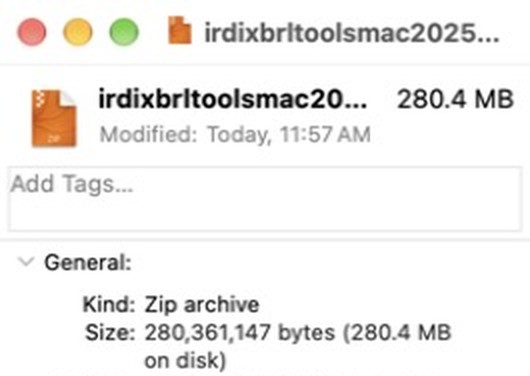
irdixbrltoolsmac2025v2.zip(version 4.1.0.0, English, covering 2022/23 to 2025/26). It is about 280 MB and contains a.dmginstaller. - The zip is not password-protected. If macOS asks for a password, the download was cut short — the IRD's server sometimes drops long downloads. Re-download and check the size: 280,361,147 bytes (as reported by the IRD's server on 27 October 2026). Open it with Archive Utility.
- macOS may block the app the first time you open it. Allow it in System Settings › Privacy & Security.
Step 2: Create a workspace
Choose Start New Workspace, pick a folder, name the workspace and select year of assessment 2025/26.
- Don't use hyphens in the workspace name —
ABC_Trading_202526, notABC-Trading-2025-26. - Keep the folder path under 100 characters; the IRD guide sets that limit.
- For a first year there's nothing to roll over — skip the roll-over prompt.
The workspace has five sections: Enter Basic Information, Enter Additional Information for Tax Computation, Tax Computation, Financial Statements, and Finalise Package. Work through them in that order.
Step 3: Enter Basic Information
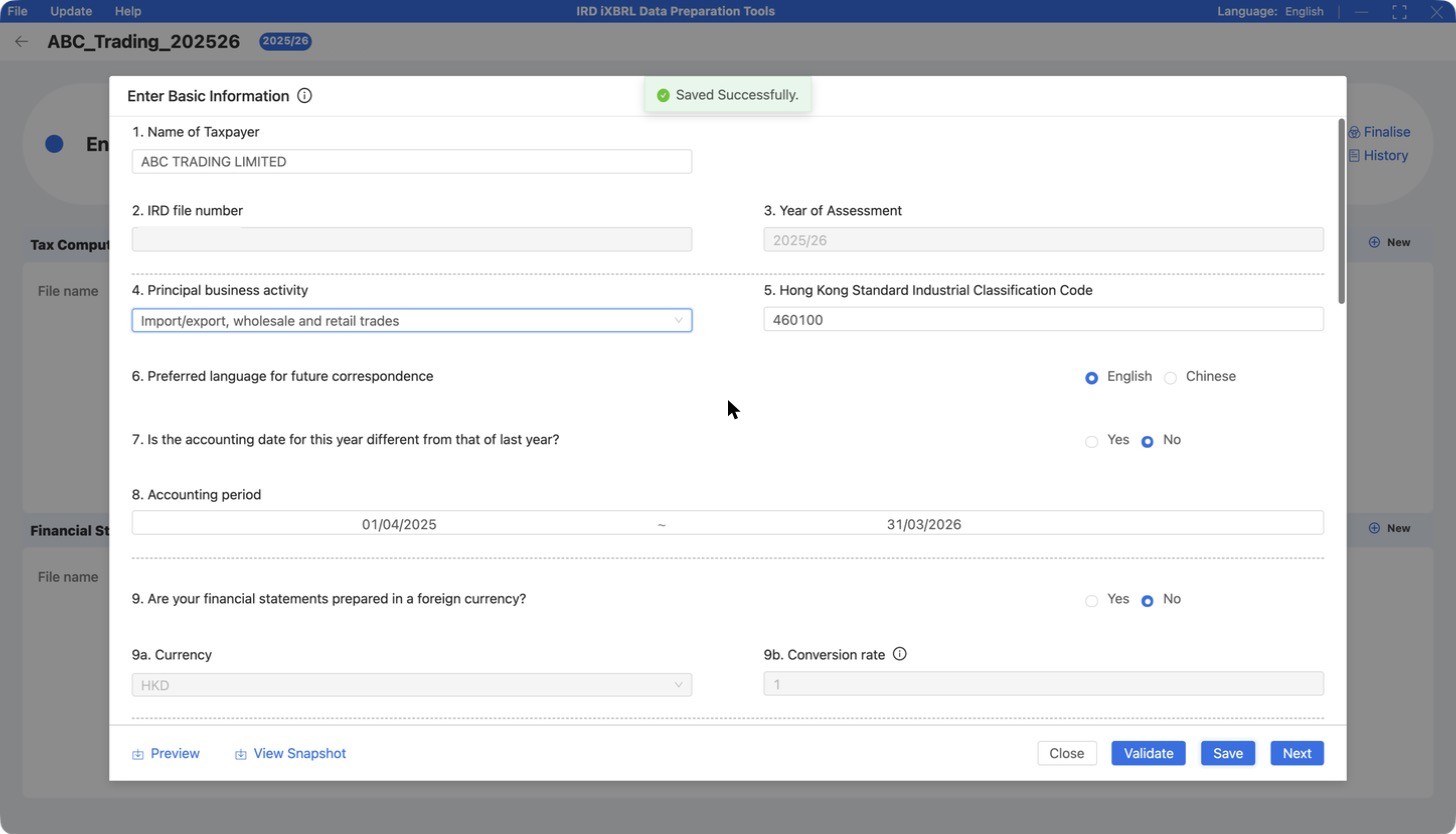
- Principal business activity is a fixed dropdown of HKSIC sections, not free text. The HKSIC code is a separate 6-digit field.
- This section also holds the BIR51 cover-page Yes/No questions — royalties for intellectual property paid to non-residents, deemed profits, double taxation relief, advance rulings, whether the accounts are audited, the CPA practising certificate number, private company status, changes of shareholders and others. Answer and validate all of them here. Until you do, finalizing fails with "Error(s) identified in Basic information".
Step 4: Enter Additional Information for Tax Computation
- Set the basis period (for ABC Trading Limited, 1 April 2025 to 31 March 2026) with the calendar pickers — typed dates aren't accepted.
- Answer the remaining questions, such as payments to non-residents.
Step 5: The tax computation
- Choose the template Corporation (General).
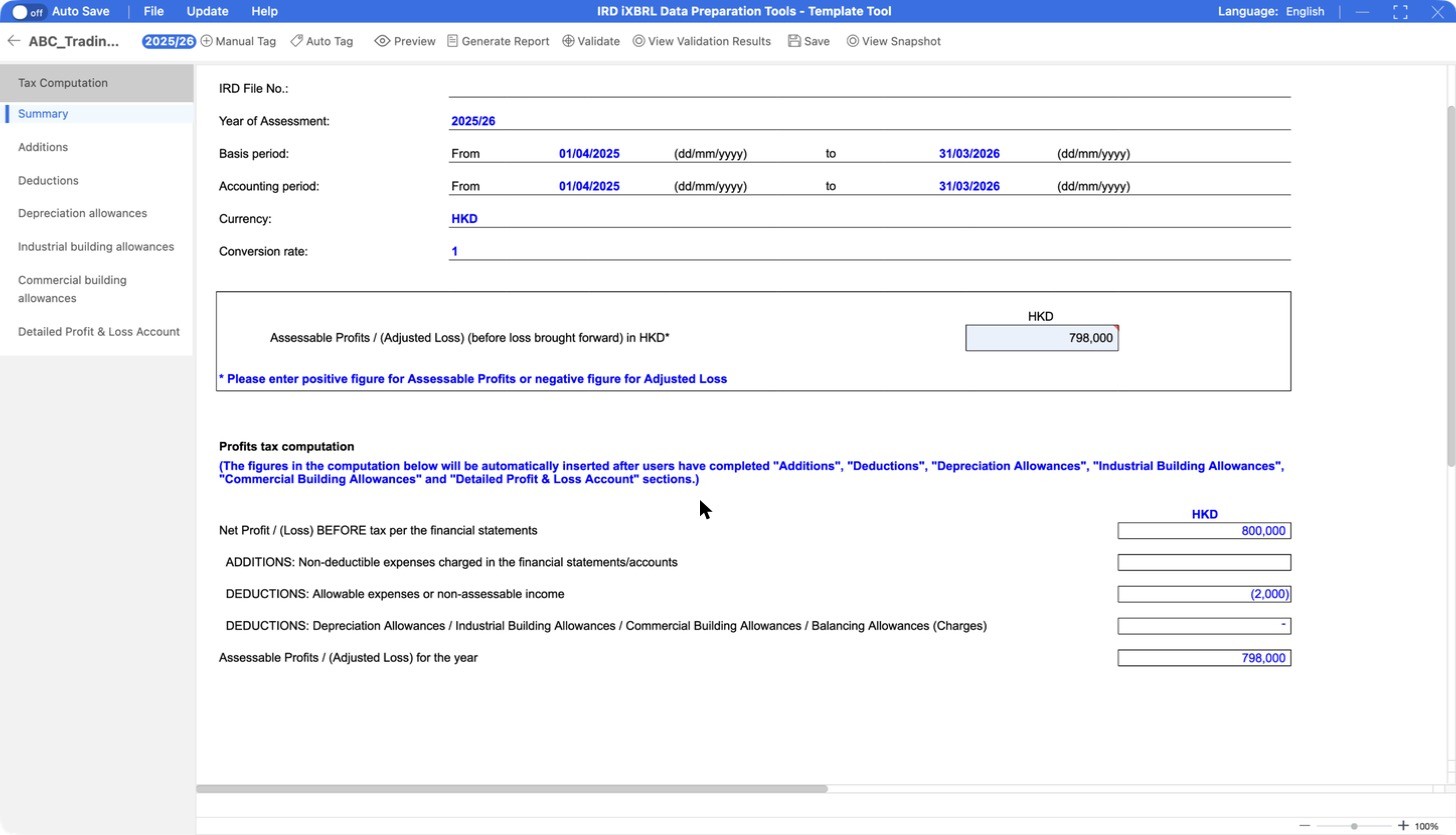
- On Summary, enter the assessable profits. The summary lines fill from the Additions, Deductions and Detailed Profit and Loss sheets.
- Fill in the detail. For ABC Trading Limited: profit before tax HK$800,000, with HK$2,000 of bank interest that is not taxable entered under Deductions › "Net interest income exempted".
- Use [+] to add rows the template doesn't have — for example subcontracting charges under cost of sales.
The template stops at assessable profits. It doesn't calculate the tax payable — the IRD does that in the assessment.
Step 6: The financial statements
- The template offers only HKFRS-FULL and HKFRS-PE. For SME-FRS accounts choose HKFRS-PE — the IRD user guide says it also applies to SME-FRF & SME-FRS.
- Enter the figures from the audited statements. The income tax line is labeled "(expense) benefit": enter a tax expense as a negative number — for ABC Trading Limited, −HK$66,000.
- Notes such as property, plant and equipment or related parties can stay blank if there is nothing to report.
- The Template Tool has no section for the auditor's report — the HKFRS-PE template covers the statement of financial position, the statement of comprehensive income, the property, plant and equipment note and the related-party note. Keep the signed audited financial statements on file — the IRD may ask for them (IRD iXBRL FAQ).
Step 7: Validate
- "Service fee received details" — the service income explanatory note — is mandatory whenever service income is not zero.
- Explanatory notes are capped at 300 characters (IRD user guide, para. 160: "The number of characters to be inputted is limited to 300"); numeric fields at 14 digits.
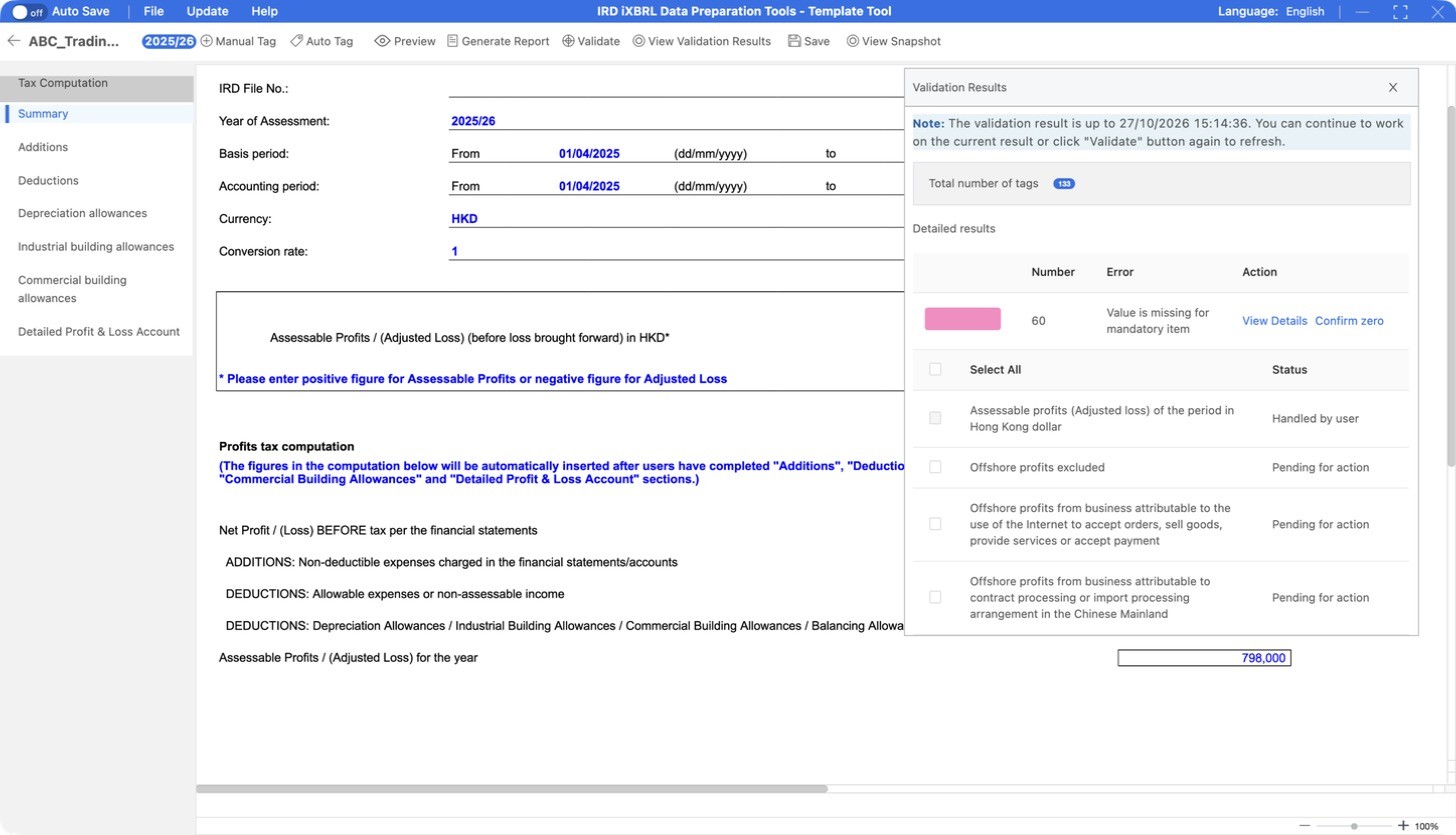
- The validation lists dozens of mandatory items that don't apply to a small company. "Confirm zero" sets them all to 0 at once — read the list before you confirm, so you don't zero something that should have a figure.
Step 8: Finalize the package
"Generate Report" does not produce the upload file — it's a preview. The upload files come from Finalise Package on the workspace screen:
- Select both the financial statements and the tax computation.
- Click Validate. Among other things, it checks that profit before tax is the same in both.
- Choose an output folder and click Finalise.
The files are named automatically: [IRD file no.]-202526-F-[timestamp].xhtml for the financial statements and …-T-… for the tax computation. Upload a matching pair from the same finalization — not an F file from one run and a T file from another.
Step 9: Upload, refresh and submit
- In the Business Tax Portal, open "Uploading of Data Files for Supplementary Forms and Supporting Documents to Profits Tax Return" and upload the two
.xhtmlfiles as they are — the portal zips them itself. - Wait for the IRD's validation. The IRD says results come within one working day, and files that fail validation are not treated as attached to the return.
- Open the electronic return, BIR51(ie). If it says the return is out of step with your uploads, click "Refresh".
- The electronic return is much shorter than the paper BIR51 — Parts 4 to 12 come from the iXBRL files. If no supplementary forms apply, click OK at the prompt.
- Submit. Uploading on its own is not filing — the return has to be submitted.
- Keep the zip files and the check sums the portal shows after upload.
Portal messages you may see
| Code | What it means | What to do |
|---|---|---|
| 553-E-0503 | Required data file missing — typically the financial statements were not uploaded with the tax computation | Upload both files from the same finalization |
| 553-E-0606 | The IRD's validation of the uploaded files is still pending | Wait — the IRD says results come within one working day. Files that fail validation are not treated as attached |
| 553-E-0601 | The draft return is out of step with the files you uploaded | Click "Refresh" on the return |
Gotchas, one line each
- Upload both files. A tax computation without the financial statements is rejected with error 553-E-0503.
- A password prompt means a broken download, not a protected file. Re-download and check the size.
- No hyphens in the workspace name, and keep the folder path under 100 characters.
- Principal business activity is a dropdown of HKSIC sections; the 6-digit HKSIC code is a separate field.
- The cover-page Yes/No questions live in Basic Information. Finalizing fails until they are answered.
- Dates are picked, not typed — use the calendar pickers.
- Service income needs its note. If service income isn't zero, "Service fee received details" is mandatory.
- Explanatory notes are capped at 300 characters (IRD user guide, para. 160); numeric fields at 14 digits.
- Review before "Confirm zero". It sets every listed mandatory item to 0 in one click.
- SME-FRS accounts use HKFRS-PE, and income tax goes in as a negative number.
- "Generate Report" is not the upload file. "Finalise Package" is.
- Upload the .xhtml files as they are, as a matching pair from one finalization.
Deadlines
- Through a tax representative: under the IRD's block extension, 2025/26 returns for March year ends ("M" code) are due on 16 November 2026 (IRD circular bel26e). Voluntary e-filers can apply for one further month; the application must reach the IRD at least 7 working days before the return is otherwise due.
- Filing yourself, without a tax representative: the block extension doesn't apply. Your due date is the one stated on the return — normally "within 1 month from the date of issue" — unless an extension is granted. Check the date on your return.
More on dates: Hong Kong profits tax return deadlines.
If you'd rather not
Certanta prepares the iXBRL financial statements and tax computation as part of preparing its clients' Profits Tax Returns, from books kept current through the year. See pricing.
Frequently asked questions
Do I have to file my Profits Tax Return in iXBRL?
For 2025/26, e-filing is mandatory only for "specified persons" under section 51AAB and Schedule 65 of the Inland Revenue Ordinance — entities in large multinational groups. Other companies may file on paper. If you e-file and your accounts are prepared under full HKFRS, HKFRS for Private Entities or SME-FRS, the portal requires both the financial statements and the tax computation in iXBRL.
Who can use the IRD's Template Tool?
Corporations, and persons other than corporations, whose gross income for the year of assessment does not exceed HK$5,000,000. Every field in the templates is pre-tagged.
Which taxonomy do I use for SME-FRS accounts?
HKFRS-PE. The IRD's user guide states that the FS-PE taxonomy applies to financial statements prepared under HKFRS for Private Entities and also to enterprises adopting SME-FRF & SME-FRS.
Why does the Mac tool zip ask for a password?
It isn't password-protected; a password prompt usually means the download was cut short. Re-download it and check that the file size is 280,361,147 bytes before opening it with Archive Utility.
Which file do I upload — the report or the package?
The package. "Generate Report" only produces a preview. "Finalise Package" creates the .xhtml files for the financial statements and tax computation; upload a matching pair from the same finalization.
Does the Template Tool calculate the tax payable?
No. The tax computation template stops at assessable profits; the IRD calculates the tax in its assessment.
Rather not do this yourself?
Certanta prepares the iXBRL financial statements and tax computation for its clients' Profits Tax Returns, from books kept current all year.
Open the demo See pricingWritten in October 2026 for the year of assessment 2025/26, using IRD iXBRL Data Preparation Tools version 4.1.0.0 for Mac (English). The IRD's screens, tools and rules change each year — check the IRD pages linked above before you rely on any step. This is a procedural guide, not tax advice.